Settings
Access the app settings by tapping the Settings icon on the home screen.
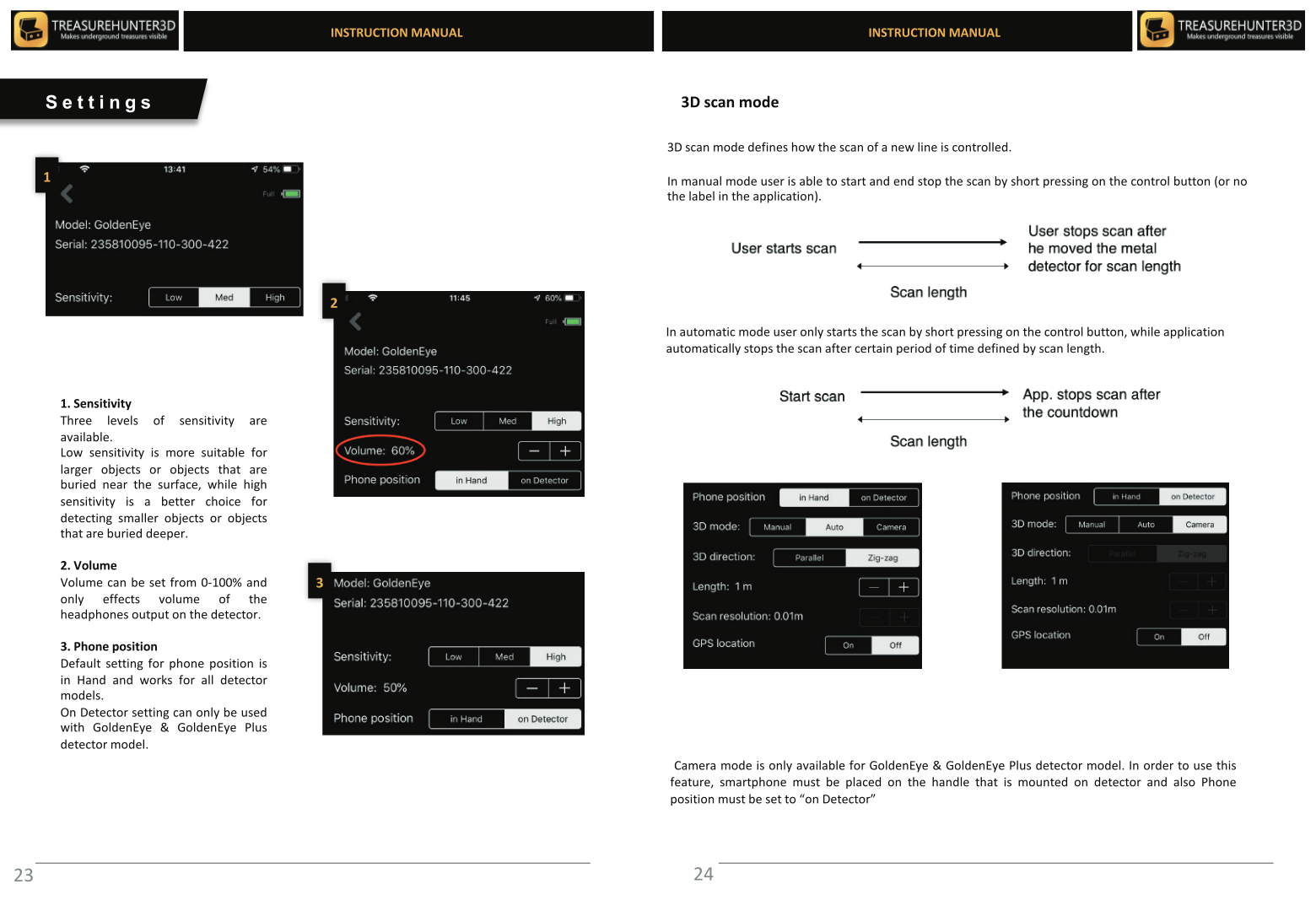
Sensitivity
Controls how sensitive the detector is to magnetic anomalies.
| Value | Use case |
|---|---|
| Low | High-mineral soil, reduces false positives |
| Medium | General use (recommended starting point) |
| High | Clean soil, maximises detection range |
Volume
Sets the audio alert volume from 0% (silent) to 100% (maximum). Adjust this or use headphones in quiet environments.
Phone Position
Tells the app how you are holding the phone during scanning, so it can correctly orient the sensor data.
| Option | When to use |
|---|---|
| In Hand | Holding the phone in your free hand while scanning |
| On Detector | Phone is mounted in the holder on the detector rod |
3D Mode
Controls how scan lines are triggered during 3D Ground Scan.
| Mode | Description |
|---|---|
| Manual | You press the control button to start and stop each scan line |
| Auto | The app starts and stops lines automatically based on movement |
| Camera | Lines are triggered via the phone camera (Advanced/Professional only) |
3D Direction
Sets the walking pattern for 3D Ground Scan.
| Option | Description |
|---|---|
| Parallel | Walk all lines in the same direction |
| Zig-zag | Reverse direction at the end of each line |
Length
Sets the expected length of each scan line. The app uses this to scale the 3D map correctly. Enter the distance in metres.
Scan Resolution (GoldenEye Plus only)
Controls the distance between scan lines. See Professional Mode for details.
GPS Location
Enables GPS tagging for stored scans. When enabled, each scan is saved with its real-world coordinates so you can navigate back to it later.
Toggle this off if you are scanning indoors or in an area with no GPS signal.