Professional Mode
Professional mode is exclusive to the GoldenEye Plus and requires an iPhone 6S or later running iOS 11 or later.
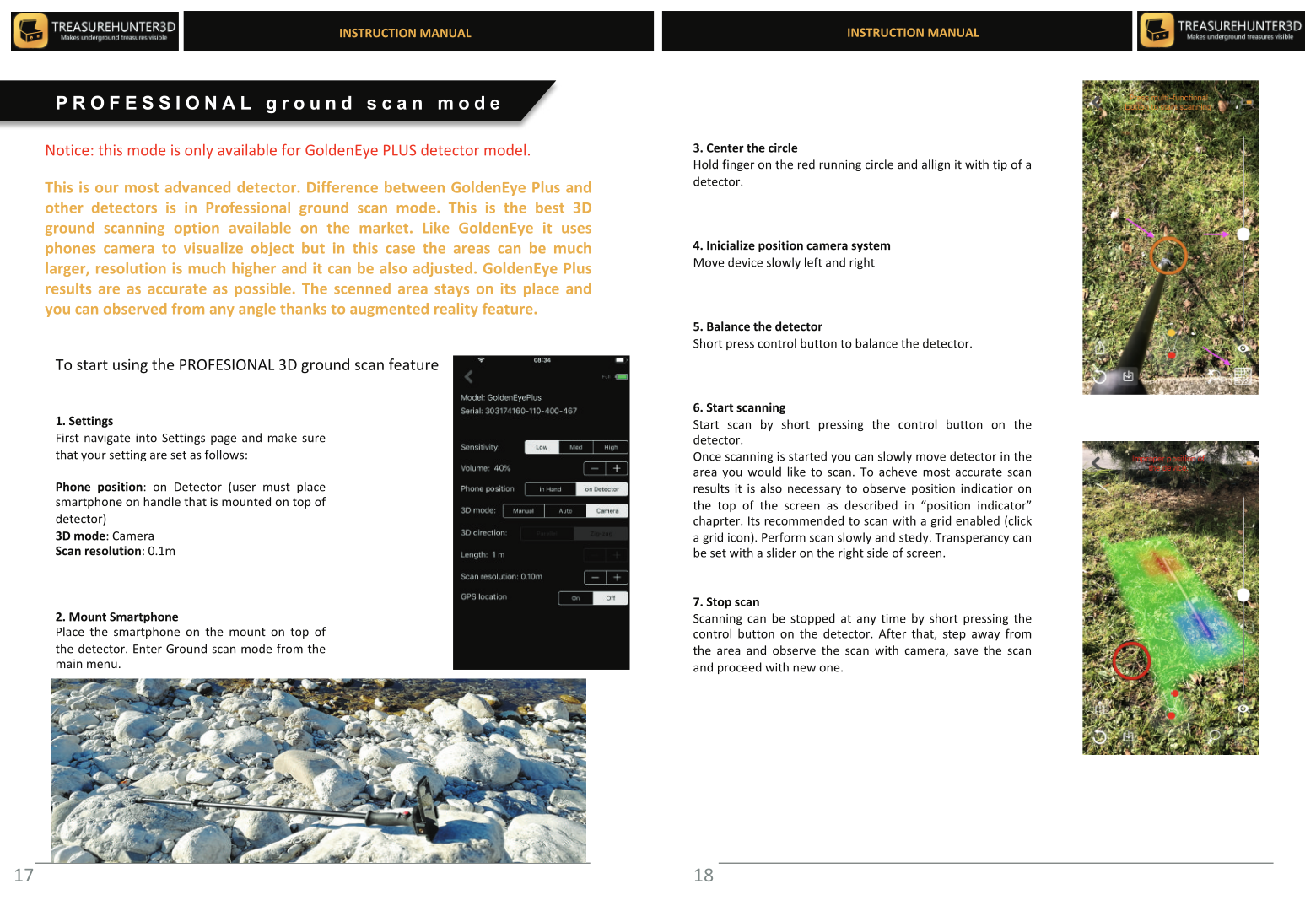
It extends Advanced mode with augmented reality (AR) overlay, support for larger scan areas, and an adjustable scan resolution setting.
See It in Action
Additional Features
AR Overlay
Professional mode uses your phone's camera and AR framework to project the 3D scan map directly onto the real-world view through the camera screen. As you point the phone at the ground, the heat map is overlaid on the actual terrain, making it easy to pinpoint target locations without switching between the 3D viewer and the real world.
Larger Scan Areas
Professional mode supports wider scan grids than Basic or Advanced mode, allowing you to map bigger plots of land in a single session.
Adjustable Scan Resolution
The Scan resolution setting (available only on GoldenEye Plus) controls the distance between scan lines:
| Resolution | Line spacing | Best for |
|---|---|---|
| Low | Wide spacing | Fast overview of a large area |
| Medium | Standard spacing | General use |
| High | Tight spacing | Detailed mapping of a small area |
Set the resolution in Settings → Scan resolution before starting a session.
Running a Professional Scan
- Ensure your iPhone 6S+ is running iOS 11+.
- Tap 3D Ground Scan → Professional in the app.
- Configure the scan resolution in Settings.
- Record scan lines as described in Basic Mode.
- Point the phone camera at the ground to view the AR overlay at any time during or after scanning.
Use a low resolution for an initial survey of a large area, then return to the highest-signal zone and re-scan at high resolution for a detailed map of that specific spot.
Interpreting the AR Overlay
The AR overlay uses the same color scale as the 3D map. See 3D Scan Interpretation Examples for worked AR scan examples, including a steel rod and a buried grenade.