Turning On & Connecting the App
Powering On the System
Follow this sequence each time you use DroneRover:
1. Turn on the Sensor Unit
Move the slider switch to the ON position.
- Green LED → device is powered on.
- Orange LED → sensor is ready.
2. Turn on the Receiver Unit
Move the slider switch to the ON position.
- Green LED → device is powered on.
- Orange LED → wireless link to sensor unit is established.
3. Turn on the Drone & Remote Controller
Refer to the DJI Phantom 4 user manual for the correct power-on sequence.
Troubleshooting power-on
| Problem | Action |
|---|---|
| Green LED does not turn on | Check that batteries are full and correctly installed |
| Orange LED on receiver unit does not turn on | Check that antennas on both units are properly installed and tightened |
Installing the DroneRover App
Download DroneRover on App Store
- Download and install the DroneRover iOS application from the App Store.
- Make sure iPhone Bluetooth is enabled.
- Confirm that both the sensor unit and receiver unit are turned ON.
- Launch the DroneRover app.
- The Bluetooth LED on the receiver unit turns blue — this confirms the smartphone is connected to the DroneRover sensor system.
tip
You are now ready to start scanning. Proceed to the Quick Start section.
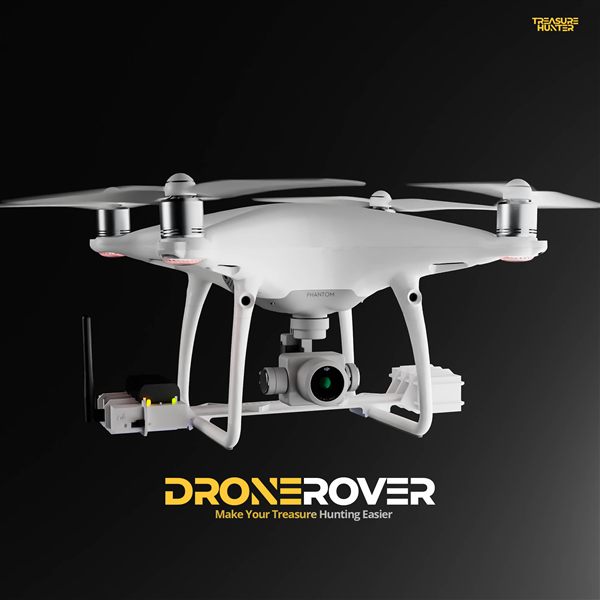
DroneRover
Aerial Underground Scanner — DJI Phantom 4 Advanced
€5,299· ★★★★½ 4.9 (18 reviews)
DroneRover — free iOS app required to operate the system