Receiver Unit
The receiver unit receives data from the sensor unit and forwards it to your smartphone via Bluetooth. Place the receiver unit no more than 2 m away from the smartphone for reliable connectivity.
Indicators
| LED | Color | Meaning |
|---|---|---|
| Power | Green | Device is turned ON |
| Sensor | Orange | Connection with the sensor unit is established |
| Bluetooth | Blue | Smartphone / DroneRover app is connected |
Controls
| Control | Description |
|---|---|
| Slider switch | Turns the receiver unit ON / OFF |
Notes
- The orange (Sensor) LED should turn ON after both the sensor unit and receiver unit are powered — this confirms the wireless link between them is active.
- The blue (Bluetooth) LED turns on when you open the DroneRover app with iPhone Bluetooth enabled.
- Batteries: 2× AA alkaline (non-rechargeable).
Troubleshooting
| Problem | Likely cause | Action |
|---|---|---|
| Green LED does not turn on | Dead or missing batteries | Replace with fresh 2× AA alkaline batteries |
| Orange (Sensor) LED does not turn on | Sensor unit not powered on | Confirm sensor unit is ON and its antenna is tight |
| Orange (Sensor) LED does not turn on | Units too far apart or interference | Move units closer together; remove obstructions between antennas |
| Blue (Bluetooth) LED does not turn on | App not open or Bluetooth off | Enable Bluetooth on iPhone and open the DroneRover app |
| Blue LED turns on but drops out | iPhone too far from receiver | Keep iPhone within 2 m of receiver unit during the scan |
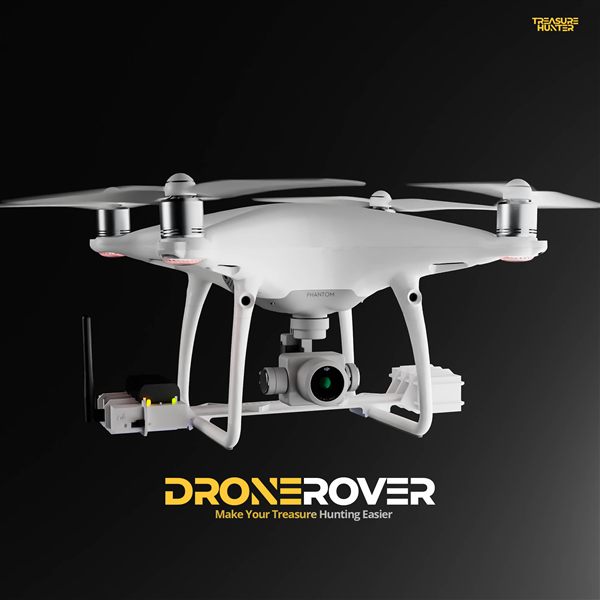
DroneRover
Aerial Underground Scanner — DJI Phantom 4 Advanced
€5,299· ★★★★½ 4.9 (18 reviews)
DroneRover — free iOS app required to operate the system