Main Control Screen
The main control screen is the central hub for all DroneRover operations.
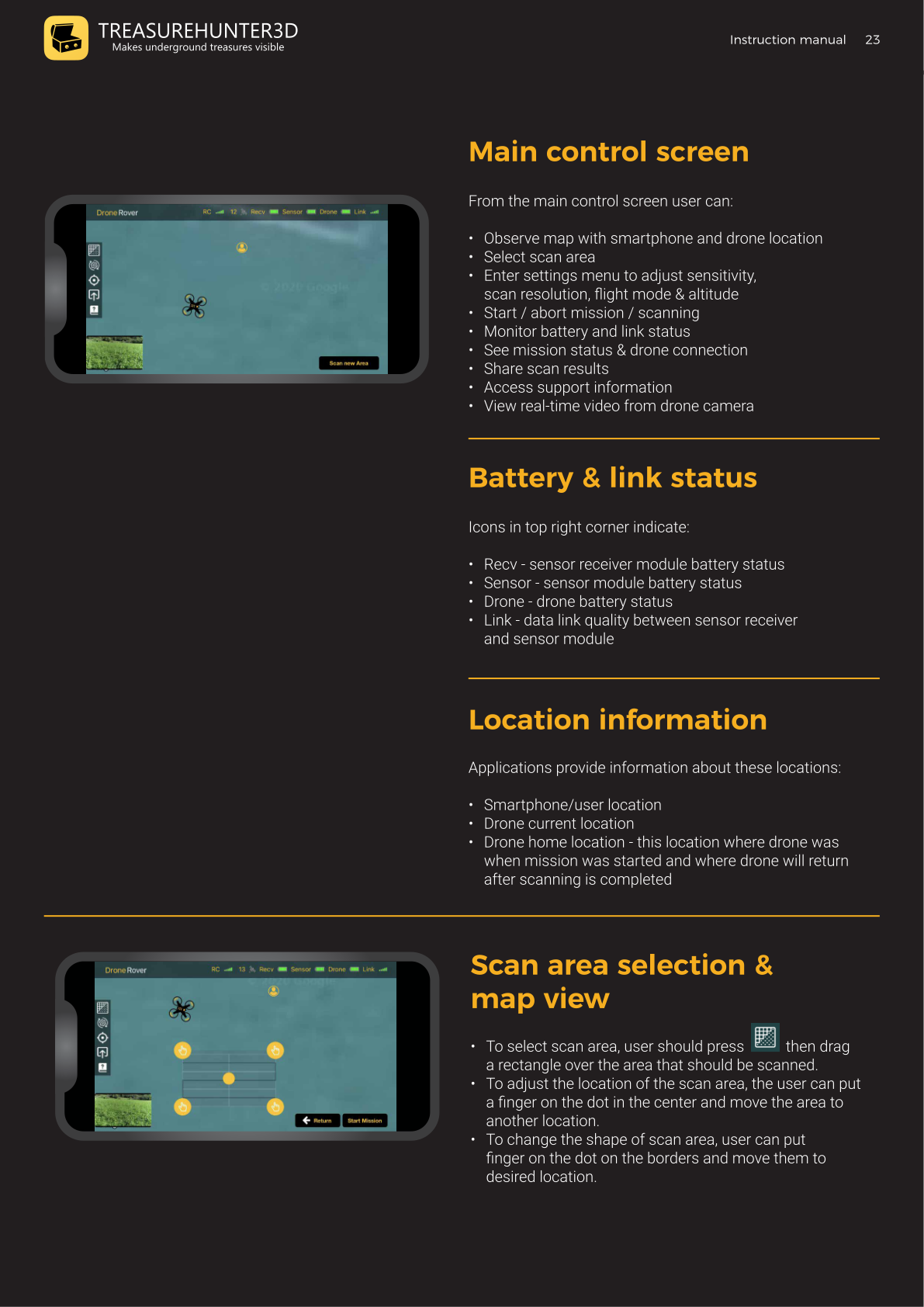
What You Can Do From Here
- Observe the map with your smartphone location and the drone's location
- Select the scan area
- Enter settings to adjust sensitivity, scan resolution, flight mode, and altitude
- Start or abort a scanning mission
- Monitor battery levels and link status
- View mission status and drone connection
- Share scan results
- Access support information
- Watch real-time video from the drone camera
Battery & Link Status
Status indicators appear in the top-right corner of the screen:
| Indicator | What it shows |
|---|---|
| RC | Remote controller signal strength |
| Rcvr | Receiver module battery level |
| Sensor | Sensor module battery level |
| Drone | Drone battery level |
| Link | Data link quality between the sensor receiver and the sensor module |
All indicators should show full before starting a mission.
Location Information
The app shows three location markers on the map:
| Marker | Description |
|---|---|
| Smartphone / User | Your current GPS position |
| Drone (current) | The drone's real-time GPS position |
| Drone home | Where the drone was when the mission started — it returns here after scanning |
Scan Area Selection
To select or adjust the scan area:
- Select area: Tap the grid icon, then press and drag to draw a rectangle on the map.
- Move the area: Put a finger on the center dot and drag the entire rectangle to a new location.
- Resize the area: Put a finger on a border dot and drag to reshape the rectangle.
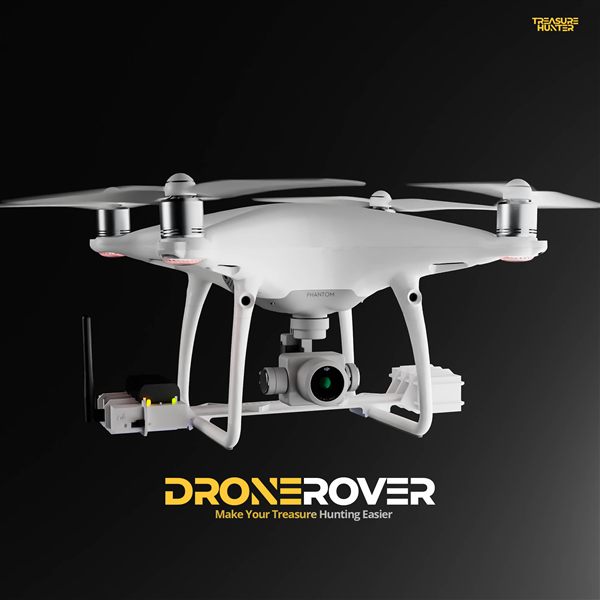
DroneRover
Aerial Underground Scanner — DJI Phantom 4 Advanced
€5,299· ★★★★½ 4.9 (18 reviews)
DroneRover — free iOS app required to operate the system